
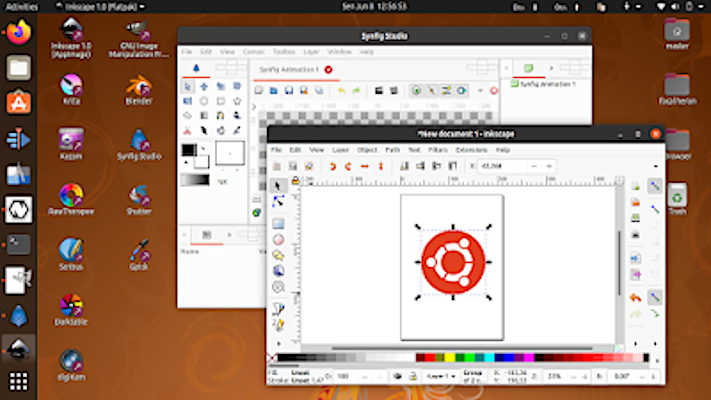
With this article you can turn Ubuntu Focal Fossa into a full professional graphic design system. This enables mass resize pictures by one click. You are given 2D and 3D graphic editing tools for both raster and vector types including animation suite and video production. For photography, I include here darkroom tools and camera management software. Last but not least, I also include a game engine which is able to produce cross platform video games. I listed them here alphabetically with necessary information I think important placed under every name. All applications below are free software. I hope this article will be useful for you. Happy designing!
- 2D animation.
- 3D animation.
- 3D graphic modeler.
- Color picker.
- Darkroom tool.
- Desktop publishing / page layout.
- Digital painting.
- Game maker.
- Image resizing.
- Image rotating.
- Photo & camera manager.
- Photo filters & effects.
- Photo retouching.
- Raster editor.
- Scanning tool.
- Screenshot editor.
- User interface designer.
- Vector editor.
- Video compositing.
- Video editor.
Akira

- Description: ui/ux designer for GNU systems. You can create UI mockups with this. It is replacement to Figma, Sketch, or Adobe XD application. Please note that Akira itself is still in alpha not ready for serious use. See Akira website.
- Category: user interface designer
- Install: snap install akira
- Note: installation requires snap instead of apt.

App Icon Preview

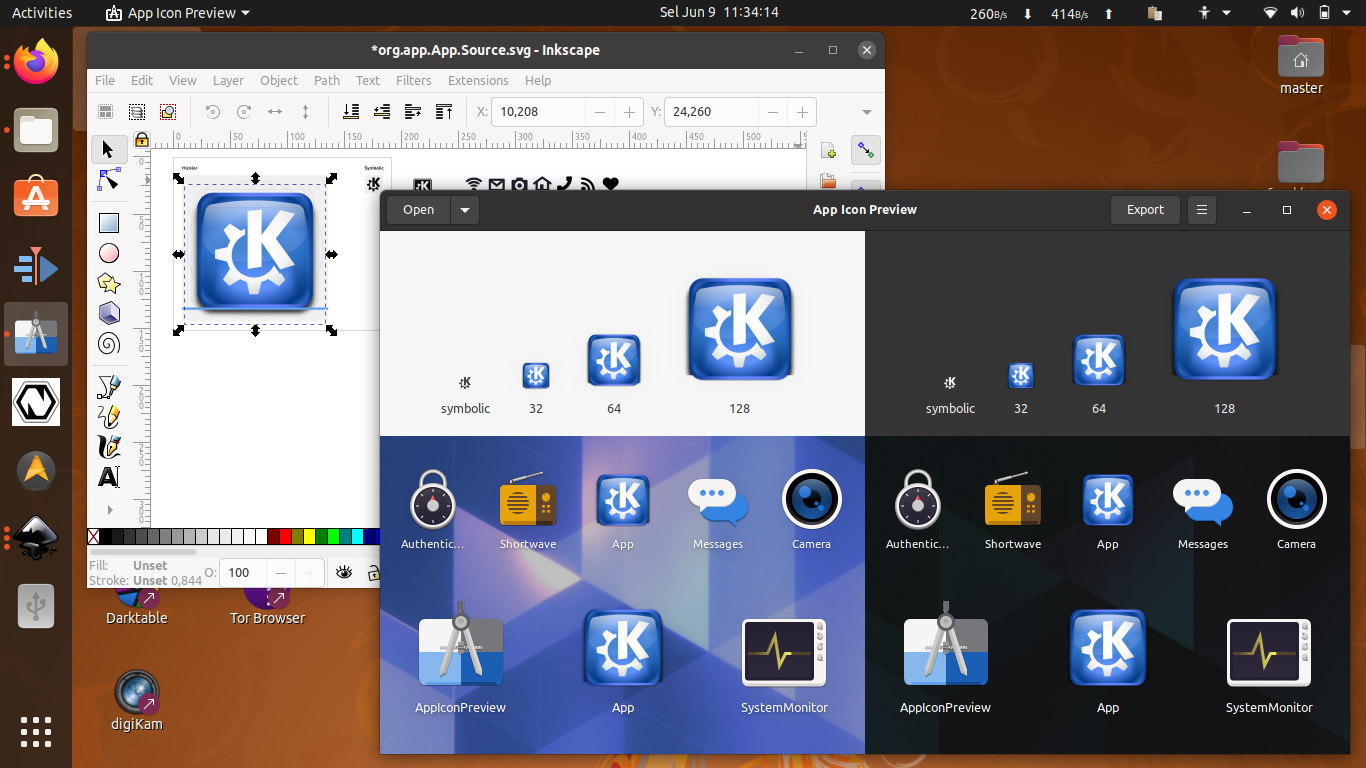
- Description: an icon designer that works well with Inkscape. You just need to create a new app icon and edit the SVG with Inkscape on the fly and finally watch the realtime changes on this app. Your icon will be displayed and compared to other built-in icons. See the website.
- Category: user interface designer
- Install: flatpak install org.gnome.design.AppIconPreview
- Note: this requires flatpak instead of apt.
Batch Image Resize

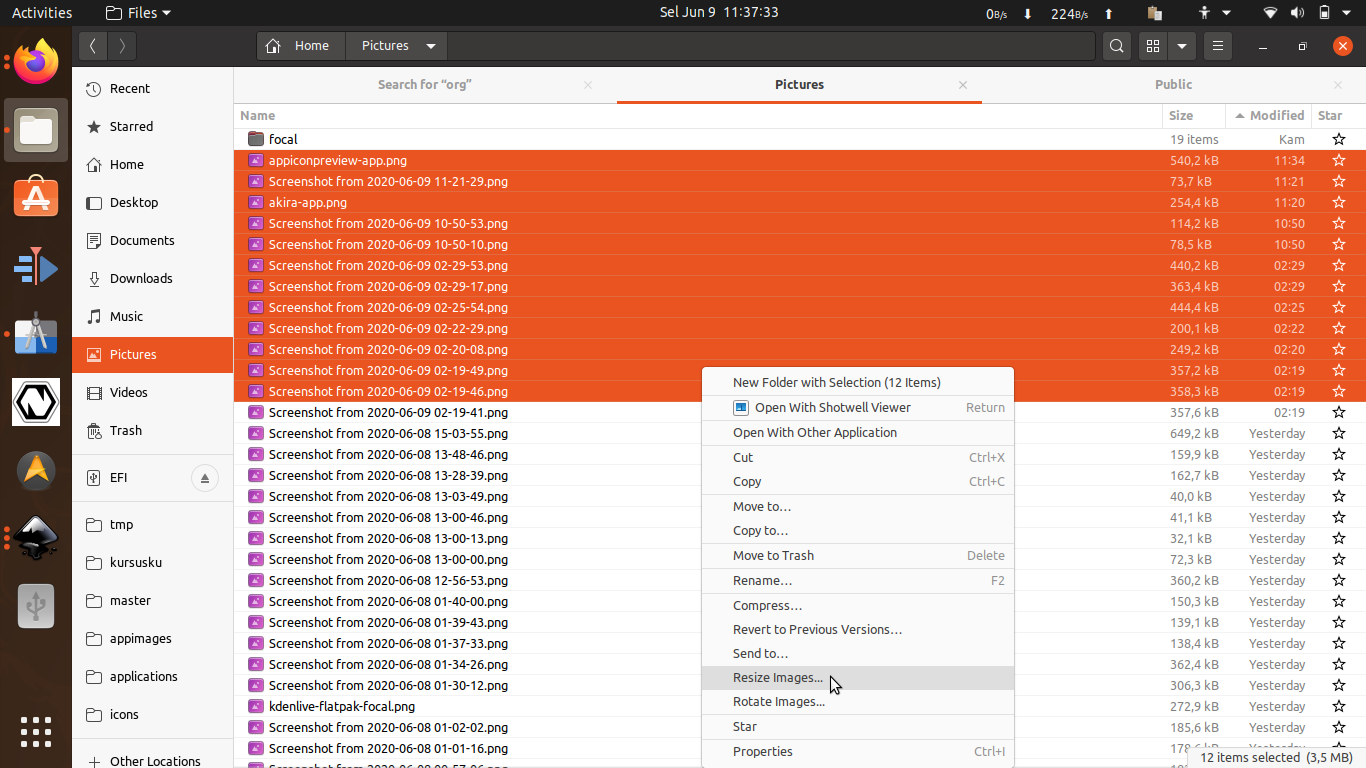
- Description: mass resize & rotate pictures by one click on your file manager. I use this for years as a designer. Just right-click multiple pictures and select either convert or resize to do your job.
- Category: image resizing, image rotating
- Install: sudo apt-get install nautilus-image-converter
- Note: unfortunately, it cannot do mass conversion. If you want one, install Dolphin File Manager and practice the tutorial, and use Dolphin instead of Nautilus.
Blender 3D

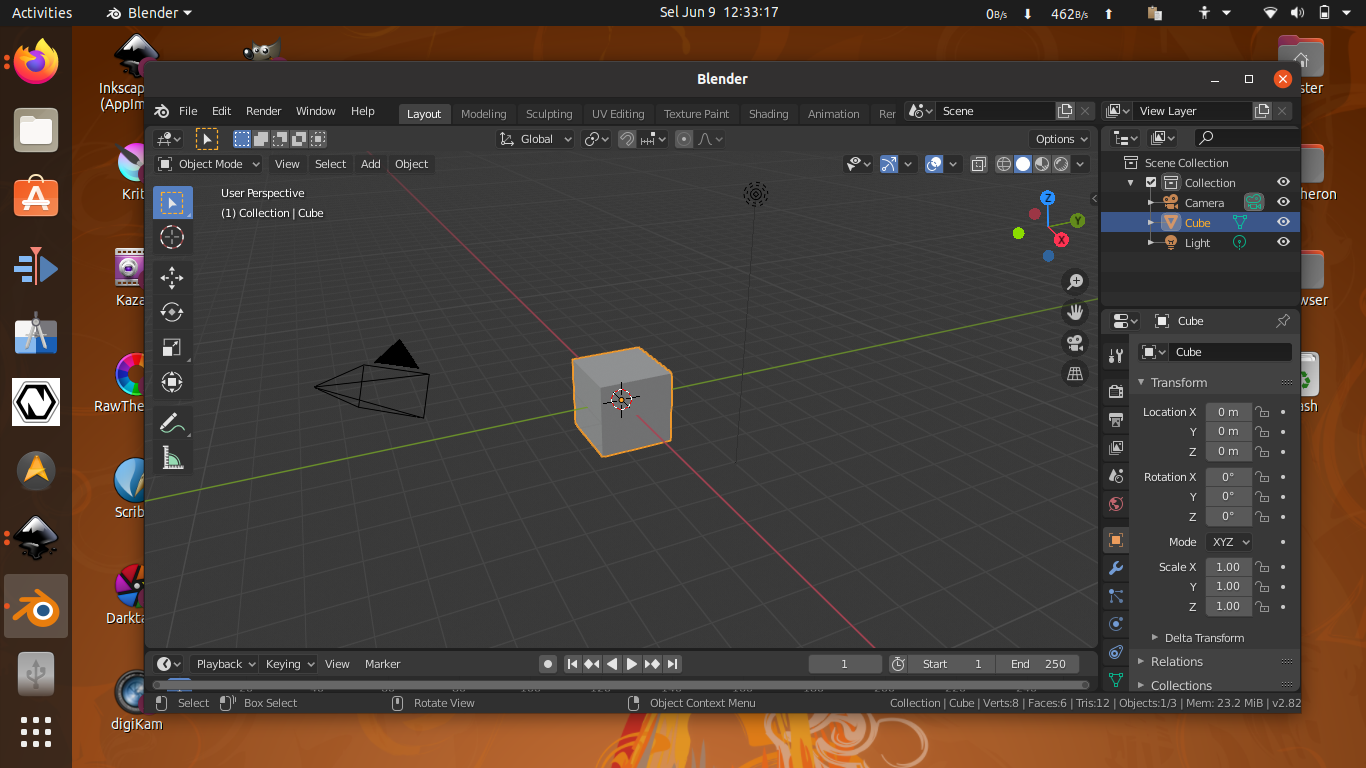
- Description: professional world-class 3D software for modeling, animation, video editing, and movie making. It has the biggest community of users (compared to tools here) and Hollywood-grade movies created such as Tears of Steel. See last section for more. See Blender website.
- Category: 3d modeler
- Install: sudo apt-get install blender
- Note: –
Darktable
- Description: the best cross-platform full-featured photography workflow & raw processing tool. It is replacement to Adobe Lightroom. See Darktable website.
- Category: darkroom tool
- Install: sudo apt-get install darktable
- Note: it has very good documentation on the installation.
Digikam
- Description: you can import photos from your Canon camera to Ubuntu computer with this awesome full-featured software. See Digikam website.
- Category: photo & camera manager.
- Install: sudo apt-get install digikam
- Note: alternatively, fortunately portable version (appimage) is available that works across Ubuntu and other distros effortlessly.

Firefox’s Mobile Mode

- Description: to switch view into mobile phone screen. There are screen size presets available: Galaxy, iPad, iPhone, and Kindle. Important for web designer who want his product to be responsive.
- Category: –
- Enable: Press Ctrl+Shift+M.

Inkscape
- Description: the replacement to CorelDRAW or Adobe Illustrator in rgb colorspace.
- Category: vector editor
- Install: sudo apt-get install inkscape
- Note: fortunately, portable version (appimage) is available.

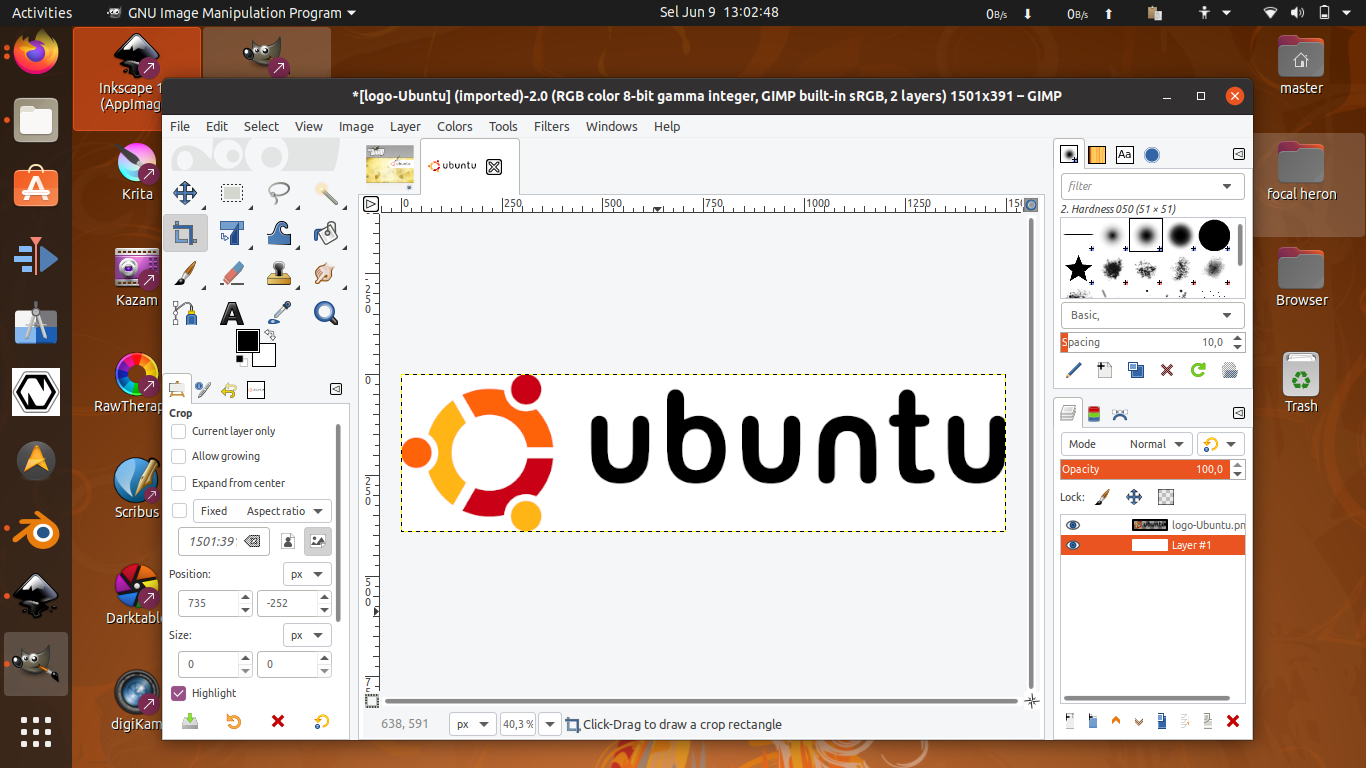
GIMP
- Description: the GNU’s Photoshop. It can be extended by GMIC.
- Category: raster editor
- Install: sudo apt-get install gimp
- Note: flatpak and snap versions also available.
GMIC
- Description: an advanced image effects and filterings tool, can be integrated to GIMP and Krita. Nothing like GMIC in proprietary software world. See GMIC website.
- Category: image effects
- Install: sudo apt-get install gmic
- Note 1: sudo apt-get install gimp-gmic # for gimp integration
- Note 2: sudo apt-get install krita-gmic # for krita integration

Godot

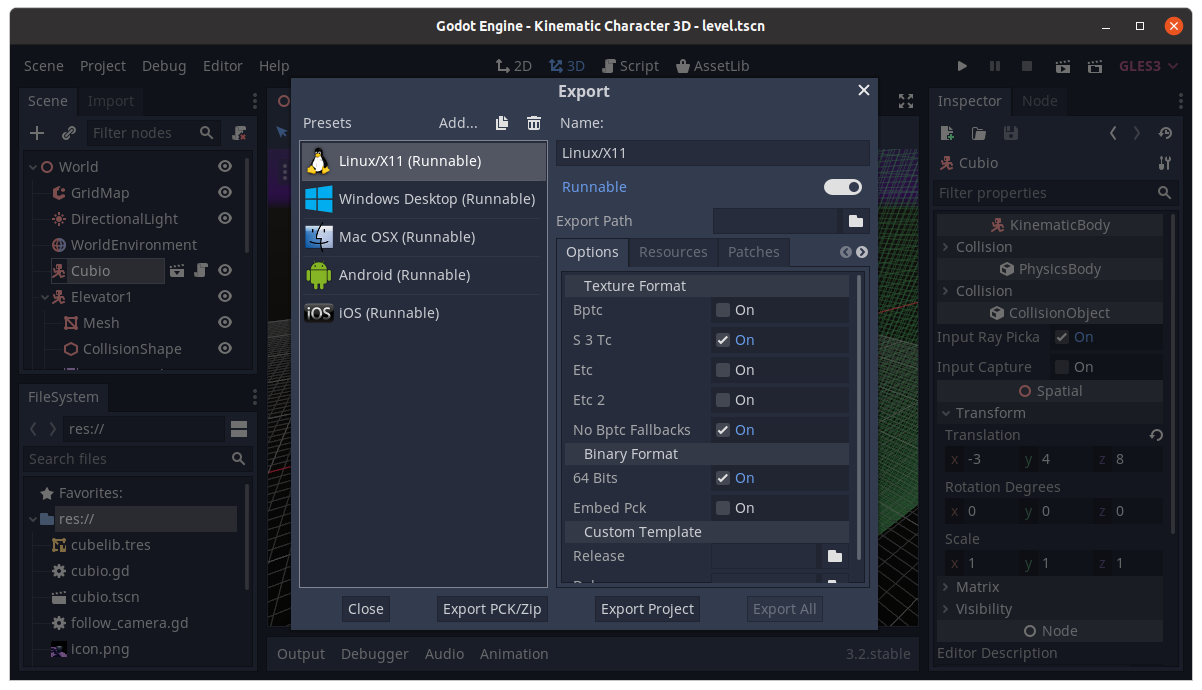
- Description: you can make cross-platform 2D and 3D video game by drag-and drop without coding. It replaces either Game Maker or 3D Game Studio or even Unity game making tools. It is completely free for commercial use. See Godot website.
- Category: game engine
- Install: sudo apt-get install godot3
- Note: alternatively, there is portable version (appimage) also available.

Kdenlive

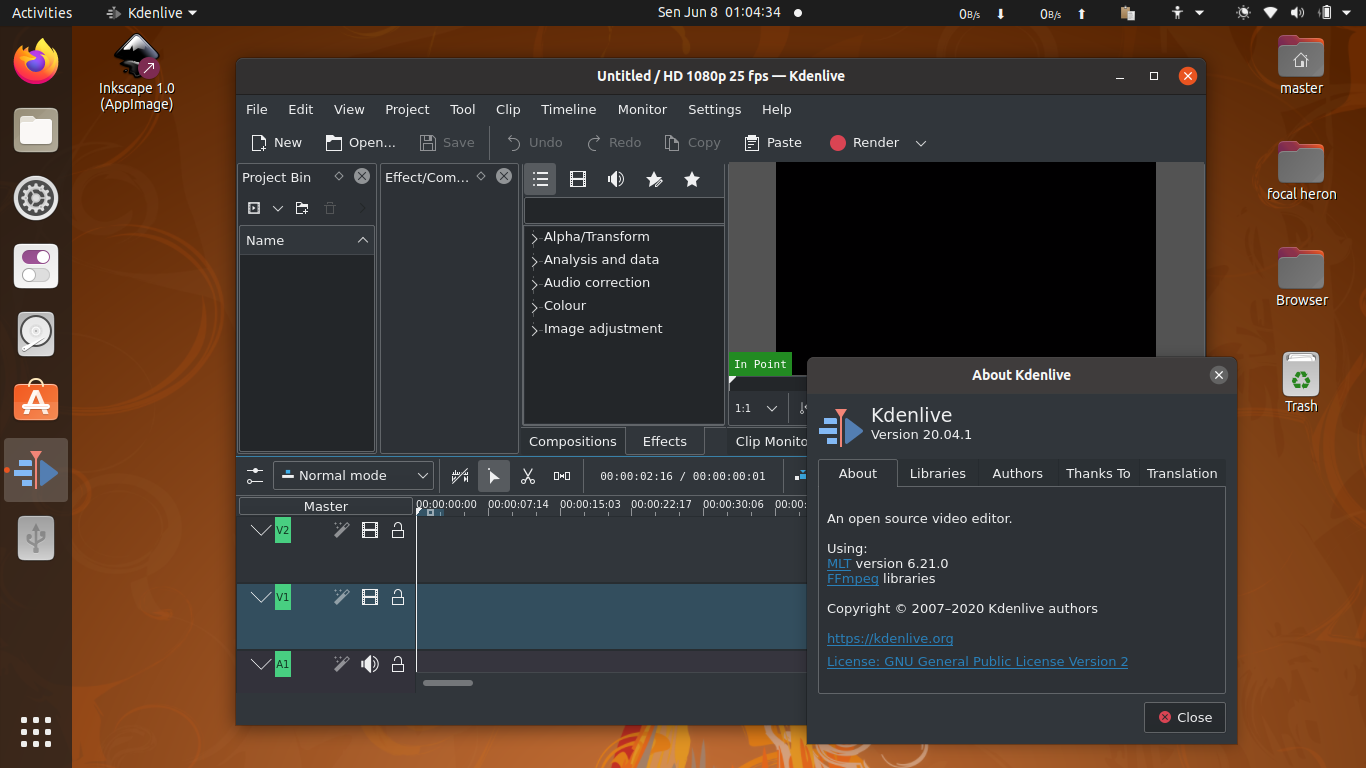
- Description: edit your video with this. It is replacement to Ulead Studio or Adobe Premiere. See Kdenlive website.
- Category: video editor
- Install: sudo apt-get install kdenlive
- Note: portable version (appimage) also available, or alternatively as snap and flatpak versions if you wish.
Krita
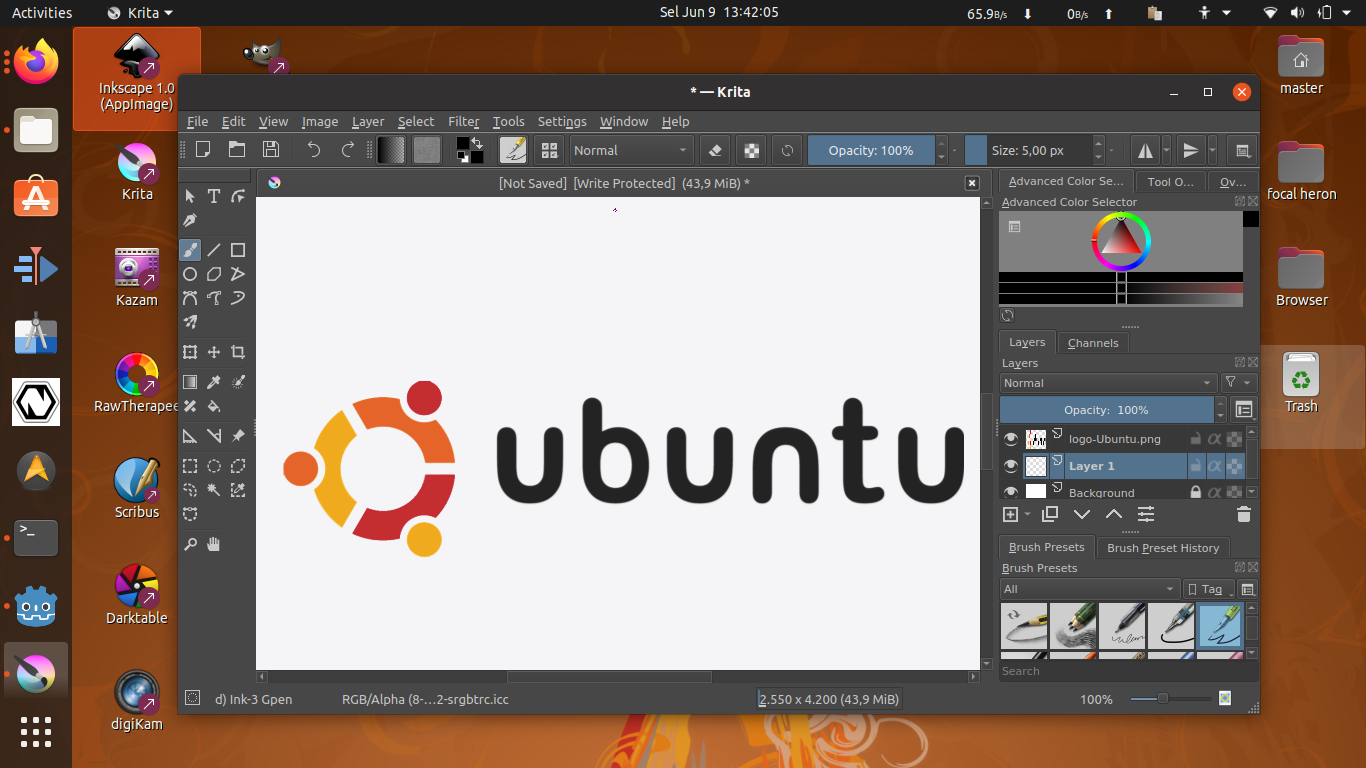
- Description: the best cross-platform full-featured digital painting software. It includes animation capabilities and can draw both vector and raster. David Revoy is the most famous artists who uses Krita today. See Krita website.
- Category:
- Install: sudo apt-get install krita
- Note: like Godot, it is also available as portable application works in Ubuntu and multiple distros flawlessly.
Natron

- Description: video compositing like Adobe AfterEffects on GNU/Linux that works with Kdenlive and other video editing tools available. See Natron website.
- Category: video compositing
- Install: snap install natron
- Note: alternatively, flatpak version is available.

Rawtherapee
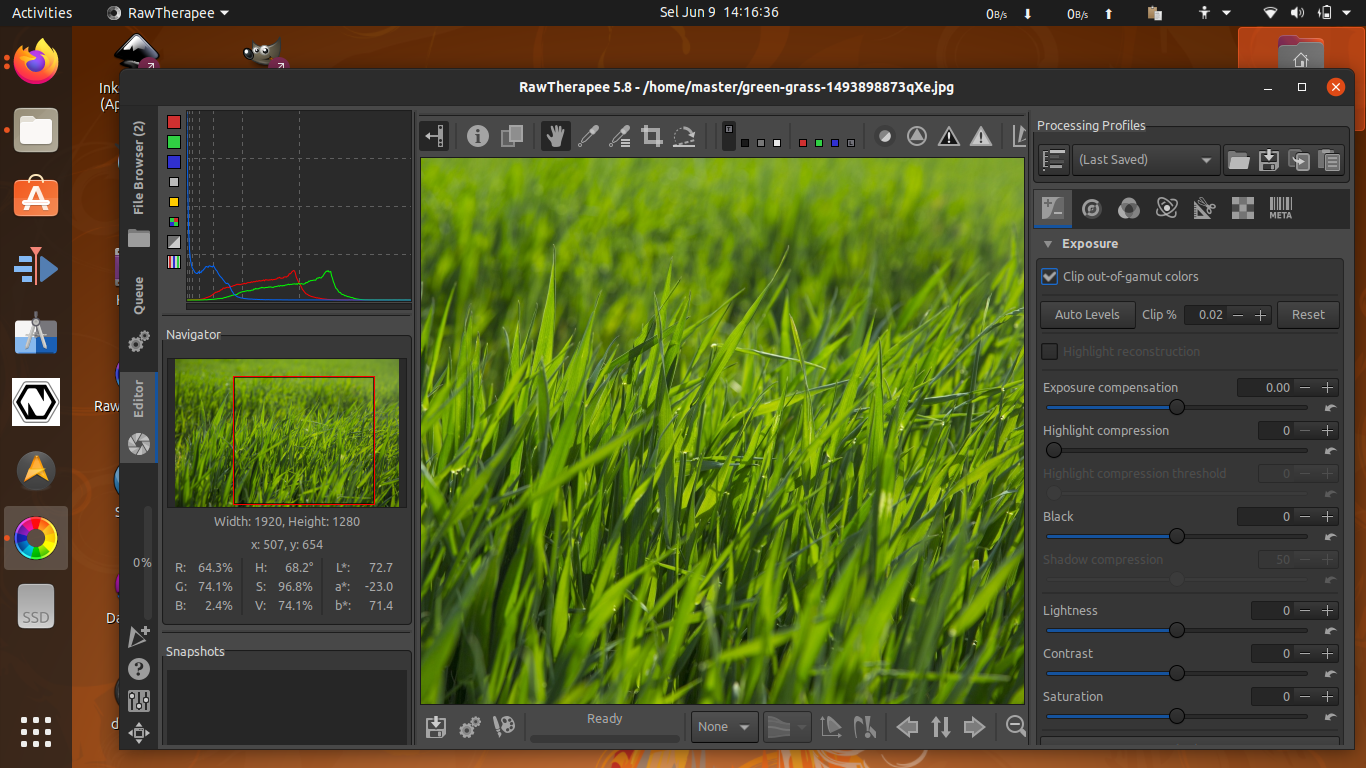
- Description: raw photo processing, similar to Darktable above, and also a replacement to Lightroom. See Rawtherapee website.
- Category: darkroom tool
- Install: sudo apt-get install rawtherapee
- Note: available via flatpak too.
Shotwell
- Description: crop tool and image viewer that is fast. Fortunately, it is a built-in application. It is the tool I use every time writing article with a lot of screenshots at UbuntuBuzz.
- Category: image viewer, crop tool
- Install: (preinstalled)
- Note: to enable you cropping (Ctrl+O) every time opening an image, change your default image viewer into Shotwell instead.

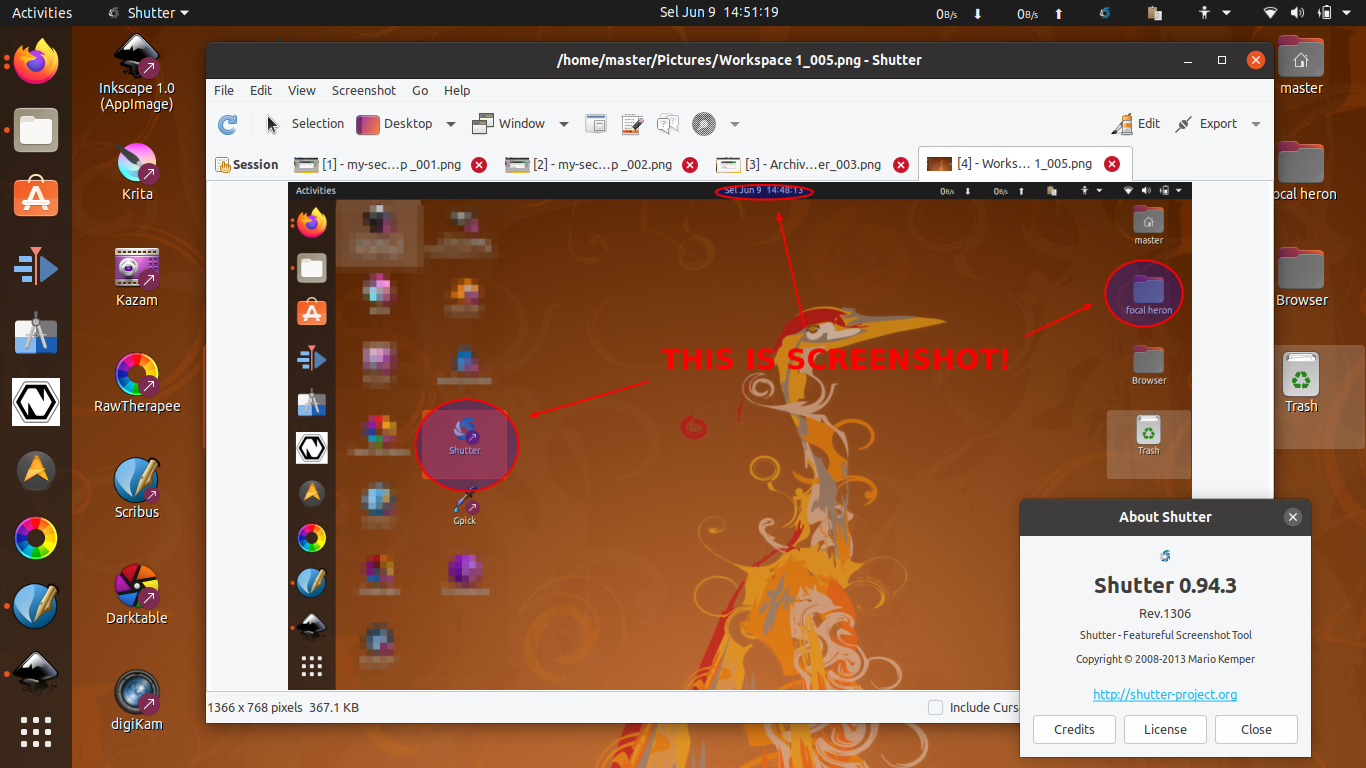
Shutter

- Description: the best full-featured screenshot tool. I use this almost for all screenshots on my articles here and beyond. See Shutter website.
- Category: screenshot annotation
- Install: sudo apt-get install shutter
- Note: not available at 20.04 so see LinuxUprising PPA to install it.
Scribus

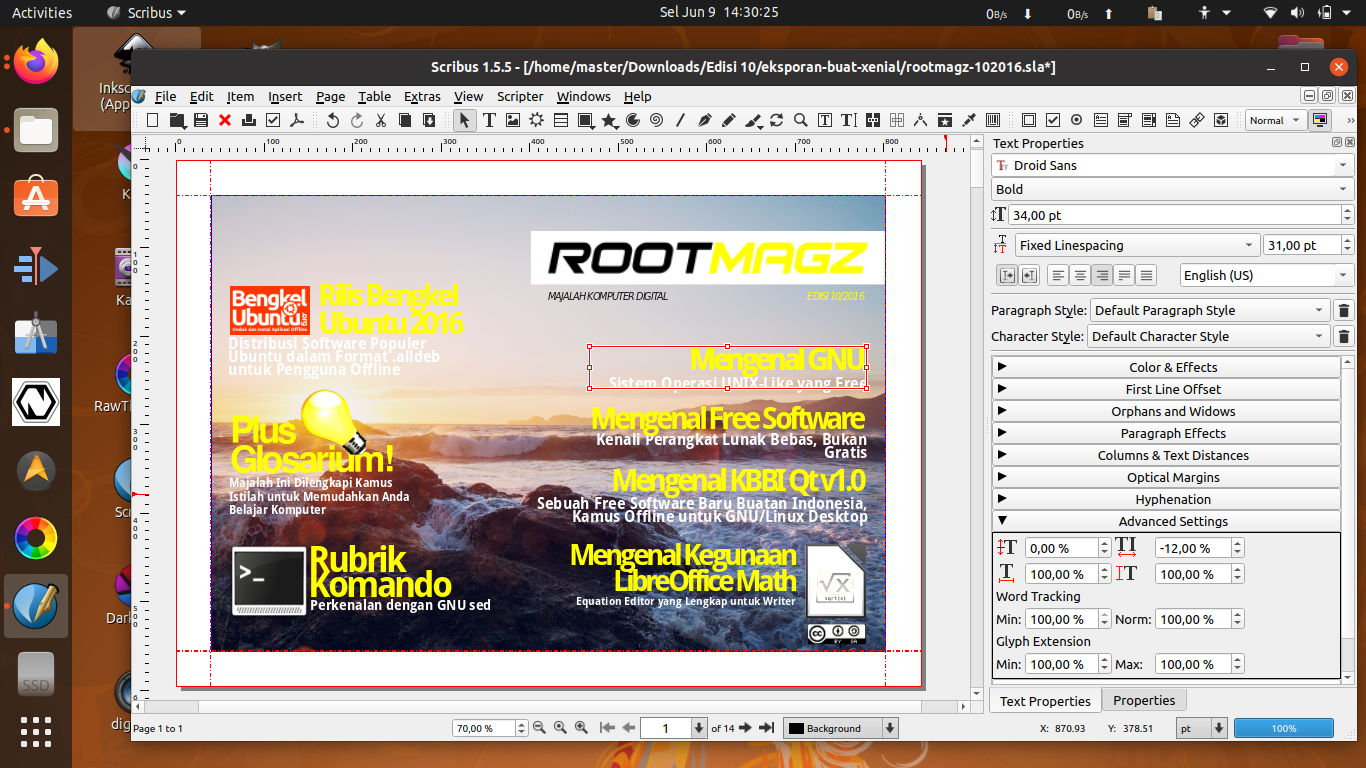
- Description: the best cross-platform desktop publishing and page layout tool with internationalization supports. You can make posters, books, newspaper, It is used by Full Circle Magazine, Malayalam Newspaper, and many others, and personally I use it to create my publishing Rootmagz.
- Category: desktop publishing
- Install: sudo apt-get install scribus
- Note: alternatively, it is also available via flatpak
Simple Scan

- Description: to make your physical pictures digital so you can edit them with digital tools like GIMP or Inkscape. For example, to scan a car poster into a PNG picture to be traced manually on Inkscape.
- Category: scanning tool
- Install: (preinstalled)
- Note: –
Synfig Studio

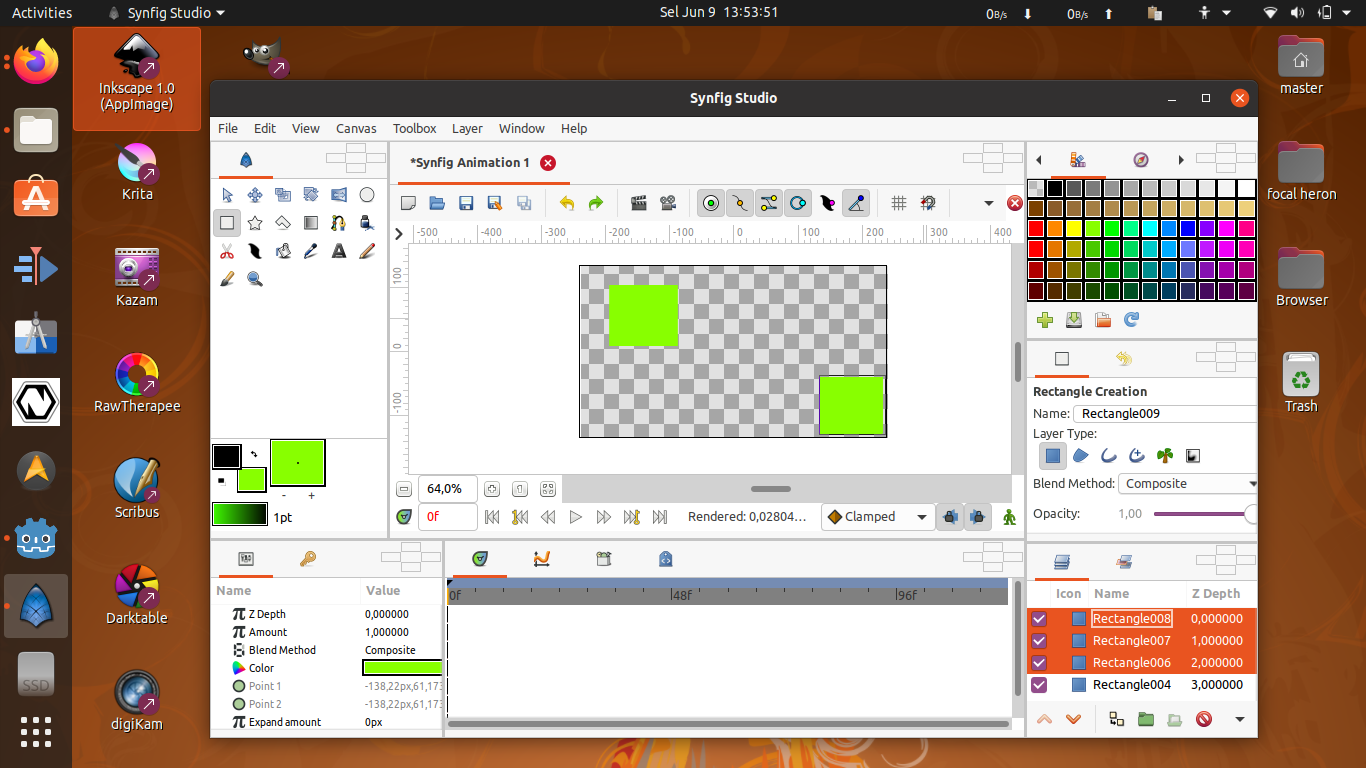
- Description: make animation like what you can do with Macromedia Flash MX. See Synfig website.
- Category: 2d animation
- Install: sudo apt-get install synfigstudio
- Note: portable version (appimage) available, and alternatively flatpak version also available.
See Also
- PIXLS.us – a photography community using free software only tools.
- Scribus forum – a page layout community.
- Inkscape forum – a vector editing community.
- GIMP forums – a photo editing community.
- GimpScape – an Inkscape & GIMP designer community from Indonesia.
- Nick Saporito – an Inkscape guru teaching at youtube.
- Irfan’s Animation – a 2015 animation video created by Irfan using Inkscape, GIMP, Synfig, and Kdenlive.
- Blender Open Movies – Hollywood-grade 3D movies created with Blender and Sintel is one of them.
- Unsplash.com – public domain photos safe & free to use for commercial.
- /usr/share/icons – system storage for all icons including apps and buttons.
Honorable Mentions
- SK1 – a vector editor and based on CMYK colorspace instead of RGB. It is still young.
- LibreOffice Writer – not a graphic tool, but is able to set out pages and print your design out. It is alternative to Scribus in page layout.
- LibreOffice Calc – is able to produce charts which in turn can be placed into your poster or infographic designs.
Good luck!